Host your PDF at a public link, then set up a comment-to-DM campaign that sends the link when someone comments GUIDE on your Instagram post or Reel. You can run this workflow on SwayCue Free, which includes 100 DMs per month. The recipient gets a link to your guide.
This walkthrough covers a workout plan, checklist or other free lead magnet. It uses SwayCue's campaign builder so you can review the post, keyword and message yourself. You need your own PDF and an Instagram Business or Creator account.
What can you do without paying?
These scripts are free to read and copy without signing up. Running them automatically requires a SwayCue account and a connected Instagram professional account. Free includes 1 profile, 1 active automation, 20 posts, 50 agent actions, and 100 DMs per month. No credit card required. See current plan limits.
Your file host has its own storage and sharing terms. A free Google Drive account can host a PDF within its storage allowance. SwayCue's DM allowance is a message count, not a promise of 100 completed downloads. Keep your first campaign to one resource and check usage if you add opening messages or follow-up steps.
Set up free PDF delivery in six steps
1. Upload the PDF and check its sharing link
Upload your finished PDF to your website, a file host or Google Drive. In Drive, open Share, change General access to Anyone with the link and choose Viewer. Copy the link and open it in a signed-out browser. The reader should be able to open the guide without requesting permission. Work or school accounts may restrict public sharing; see Google's file-sharing instructions.
For this example, replace [PDF_LINK] with that URL. Do not paste your private editing link or leave the placeholder in a live campaign.
2. Connect your Instagram professional account
Create a SwayCue account and connect the Instagram Business or Creator account that owns the post. Finish the account connection before building the campaign. If the post picker is empty, check the connected account before continuing.
3. Choose the post and a clear keyword
Open Campaigns and create a campaign. Under When someone comments on, select a specific post or reel. Under And this comment has, choose a specific word or words and enter GUIDE. Use the same word in your Reel caption. Start with one keyword so the request is easy to explain and test.
For a workout giveaway, use PLAN instead and copy a fitness coach DM template. If you want to schedule the Reel first, select the scheduled post when it is available in your post picker and review both the publishing and campaign settings.
4. Add the private message and PDF link
In the DM with a link section, write a short message that names the guide. Choose Add A Link, paste your public PDF URL and give the button a clear label such as Open guide. Keep the link in the builder when it adds its link placeholder to your message. Use the preview to check what the recipient will see.
You can also enable reply to their comments under the post and add a short public reply. An opening DM and a follow requirement are optional. Leave them off for the simplest first test; if you add them later, test the complete path again.
5. Review and activate the campaign
Confirm the selected account, post, keyword, message and destination link in the preview. Save and activate only when those details match the offer in your caption. The snippets below are example copy; clicking Copy here does not create or activate a campaign.
6. Ask for the keyword in your caption
Say what the guide contains and ask readers to comment GUIDE to receive it. If your caption promises a free PDF, the destination should deliver that PDF without an unexpected purchase. If you require a follow or an email signup, explain that before someone requests it.
Copy the caption, public reply and private DM
Replace [GUIDE_NAME] and [PDF_LINK] before using these messages. When using a link button, configure the URL in the campaign builder too.
Deliver a PDF guide after a GUIDE comment
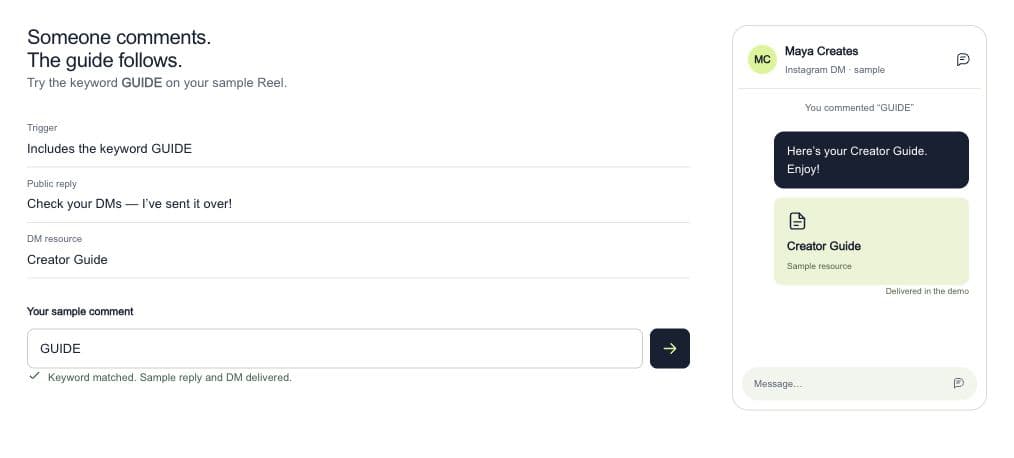
Keyword: GUIDEWant my [GUIDE_NAME]? Comment GUIDE and I’ll DM you the free PDF link.
Check your DMs for the guide. If you don’t see it, check message requests.
Here’s [GUIDE_NAME], as promised: [PDF_LINK]. Save the link so you can come back to it.
Replace bracketed placeholders with your own resource and URL before using this example.
Test it from the commenter's point of view
- Use another Instagram account to leave a fresh GUIDE comment on the selected post or Reel.
- Check that account's DMs and message requests. If an opening message or follow step is enabled, complete it.
- Open the delivered link on a phone. Check that the right PDF opens without a permission request.
- Check SwayCue's campaign delivery log for successful and failed messages. Reusing a previous test commenter can encounter duplicate protections.
- Repeat the test after changing your keyword, link or campaign steps.
Keep this as a test of the full journey, not just the preview. For more examples, use the free Instagram comment-to-DM template library.
Troubleshoot the two common failure points
The commenter did not receive a DM
Check the campaign is active, attached to the correct post, and watching the expected keyword. Check message requests, complete any opening-button or follow step, and inspect the delivery log for the actual error. Confirm the account connection and available usage allowance. Change only the setting related to the error, then test again.
The DM arrived, but the PDF will not open
Open the exact delivered link in a signed-out browser. A request-access screen usually means the host's sharing permissions need changing. A missing file can mean the original was moved or deleted. Update the destination and repeat the click-through test.
Measure requests, deliveries and downloads separately
Record how many people requested the guide and how many messages were delivered. If you need to measure downloads, email signups or purchases, use the relevant file-host, landing-page or checkout analytics. A link click does not prove any of those later actions happened.
This workflow responds to a person's interaction with your content. Instagram's supported triggers and messaging restrictions still apply; consult Meta's private-reply documentation when checking API behaviour. For a broader overview, read the comment-to-DM setup guide.
Questions about free Instagram PDF delivery
Host your PDF at a public, view-only link, connect an Instagram Business or Creator account to SwayCue, and create a comment-to-DM campaign. Choose the post, set a keyword such as GUIDE, and put the PDF link in the private message. Review and activate the campaign, then test it from another account. The Free plan includes 100 DMs per month.
This walkthrough sends a link to a PDF you host elsewhere. The recipient opens the link to view or download the file. Copying a script or uploading a screenshot here does not attach a PDF to an Instagram message.
No. The workflow below uses SwayCue. Other comment-to-DM tools can also deliver a PDF link; compare their supported triggers, account requirements and current free-plan limits before choosing one.
Free includes 1 Instagram profile, 1 active automation, 20 posts, 50 agent actions and 100 DMs per month. No credit card is required. These allowances cover the workspace; extra steps or messages can use more of your allowance.
No. A follow requirement is optional. For the simplest first campaign, deliver the requested link without extra steps. If you enable the requirement, explain it in the caption and test the follow and button steps as well as the final delivery.
No. A sent DM, a link click, a file download and a sale are different events. Check successful deliveries in SwayCue and use your file host, signup form or checkout analytics to measure the later steps.
Start with one guide and one campaign
Copy a workout-plan script, browse all free templates or build your own campaign instruction. If you are comparing tools, see the ManyChat alternative guide and check current pricing.